Measuring Insertion Loss
Using a NanoVNA to Measure Insertion Loss
Introduction
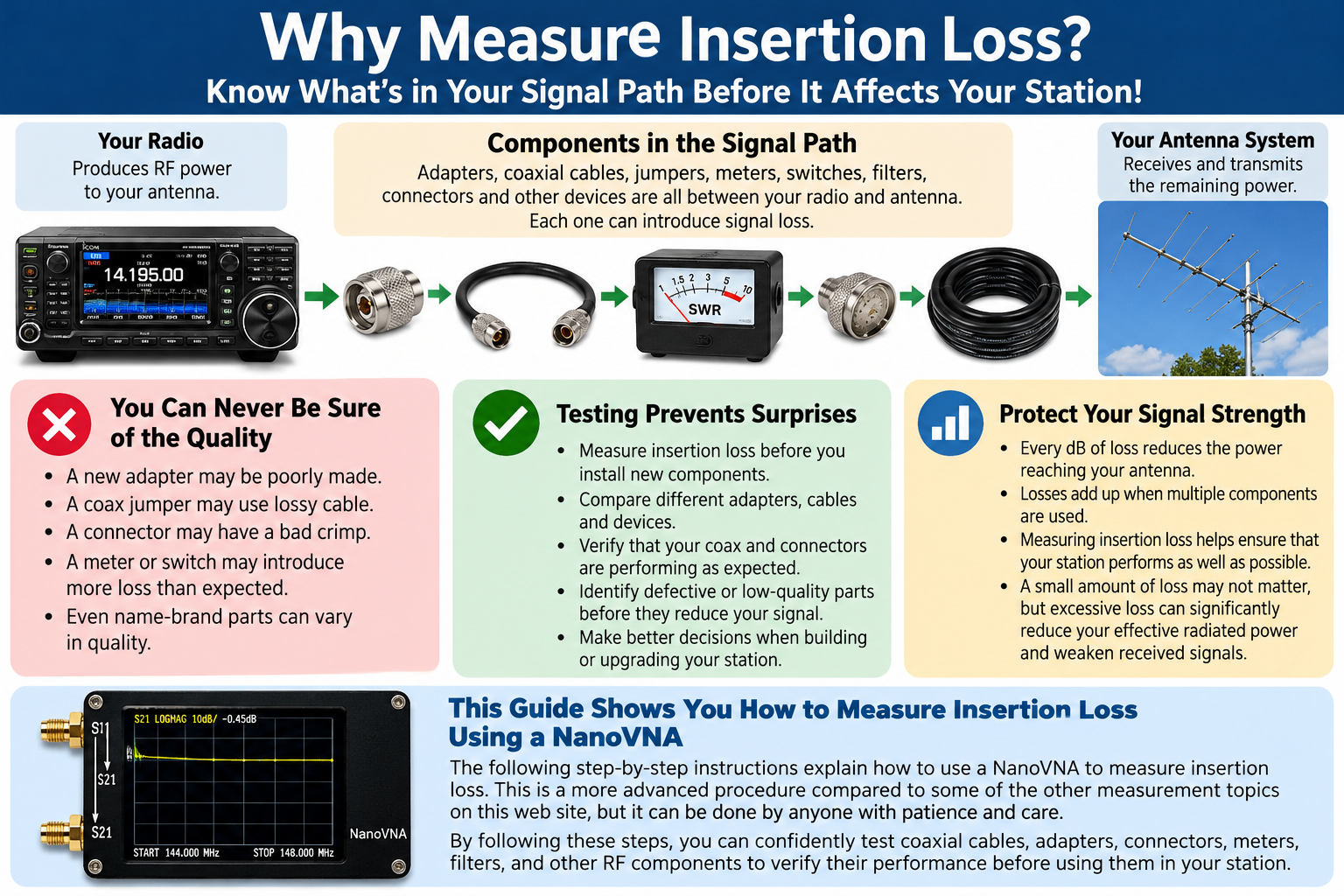
When assembling or upgrading an amateur radio station, we frequently purchase coaxial cables, jumpers, adapters, connectors, antenna switches, SWR meters, and other components that become part of the signal path between our radio and antenna. Although these products may appear to be of good quality, we cannot always be certain they will perform as advertised. Even a new component can have manufacturing defects or introduce more signal loss than expected.
One way to evaluate these components before installing them is by measuring their insertion loss using a Vector Network Analyzer (VNA). Insertion loss measures how much RF signal is lost as it passes through a component. This is important because excessive loss can reduce transmitted power reaching the antenna and weaken incoming received signals. A NanoVNA is an inexpensive and useful instrument for making these measurements.
The following guide explains how to configure, calibrate, and use a NanoVNA to measure insertion loss. It also introduces the use of multiple measurement traces so the operator can examine both SWR and insertion loss.
This is a somewhat more advanced NanoVNA procedure than basic SWR measurements. However, with patience, careful attention to the instructions, and a little practice, it is something virtually any amateur radio operator can learn to perform. The instructions are based primarily on the NanoVNA-H4 and similar instruments. Menu names, locations, and available features may differ depending on the NanoVNA model and firmware version.
PART 1 — UNDERSTANDING INSERTION LOSS
1. What Is Insertion Loss?
Insertion loss represents the reduction in RF signal strength caused by inserting a component into a transmission path.
For example, consider the following arrangement:
RADIO → COAXIAL JUMPER → SWR METER → COAXIAL CABLE → ANTENNA
Every component in this path can introduce some signal loss.
Some loss is unavoidable. Even high-quality coaxial cable has resistance and other characteristics that cause RF energy to be lost.
However, excessive loss may indicate a problem such as:
* Defective or poorly constructed coaxial cable.
* Poorly installed connectors.
* Damaged adapters.
* Excessive loss through an antenna switch.
* A defective or poorly designed RF component.
* Impedance mismatches.
The purpose of insertion-loss testing is not necessarily to find components having absolutely no loss. Rather, it is to determine whether their losses are reasonable for their intended application.
2. Understanding Decibels
Insertion loss is expressed in decibels (dB). The NanoVNA measures transmission using a parameter called S21. When S21 is displayed in LOGMAG format, a component that introduces signal loss will normally produce a negative reading. For example, a reading of −3 dB indicates that approximately half the power is transmitted through the component.
Remember: The closer the S21 reading is to 0 dB, the less insertion loss is present.
An S21 reading of −0.4 dB corresponds to approximately 0.4 dB of insertion loss.
3. Understanding the NanoVNA Ports
Most NanoVNA instruments have two RF connectors. These are commonly identified as:
PORT 1 — S11 / REFLECT
This port generates the RF test signal and measures the portion reflected toward the source.
S11 is used for measurements such as:
* SWR
* Resistance
* Reactance
* Return loss
PORT 2 — S21 / THROUGH
This port receives the signal transmitted through the component being tested.
For insertion-loss measurements, the test signal travels from Port 1, through the component, and into Port 2.
The connection is:
**PORT 1 → COMPONENT BEING TESTED → PORT 2**
The NanoVNA measures how much of the signal reaches Port 2 relative to the signal introduced at Port 1.
Why Use Two Traces?
Although insertion loss is our primary measurement, we will configure two traces:
TRACE 1 — SWR (S11)
Shows how well the input of the component being tested matches a 50-ohm system.
TRACE 2 — LOGMAG (S21)
Shows how much of the signal passes through the component.
These measurements provide different information. For example, an adapter might introduce very little insertion loss but still produce an impedance mismatch. By displaying SWR and insertion loss simultaneously, we can obtain a more complete understanding of a component's RF characteristics.
IMPORTANT: A satisfactory SWR reading does not necessarily mean that insertion loss is low. Likewise, a low insertion-loss reading does not guarantee a perfect impedance match.
PART 2 — EQUIPMENT AND PREPARATION
4. Equipment Required
Before beginning, gather the following equipment:
1. A NanoVNA capable of S11 and S21 measurements.
2. OPEN calibration standard.
3. SHORT calibration standard.
4. 50-ohm LOAD calibration standard.
5. Two short coaxial test cables, if needed.
6. A suitable THROUGH connector or adapter.
7. The component being tested.
8. Any additional adapters necessary to complete the connections.
Most NanoVNA calibration kits include OPEN, SHORT, LOAD, and THROUGH calibration accessories. For insertion-loss measurements, two short, flexible coaxial cables are particularly useful. These protect the NanoVNA's SMA connectors from unnecessary mechanical stress and make connecting different components easier.
Important Safety Considerations
The NanoVNA generates its own low-power RF test signal. Never connect an operating transmitter to either NanoVNA port. Make sure the component being tested is disconnected from radios, amplifiers, or other active equipment. Only test passive components using this procedure. Active components, such as amplifiers, require additional precautions and different measurement techniques.
5. Understanding Calibration Reference Points
One of the most important concepts in VNA measurements is the calibration reference plane. This is the point in the test setup where the NanoVNA considers the measurement to begin or end. For example, suppose we connect a short test cable to each NanoVNA port.
If we calibrate using the free ends of those cables, the NanoVNA can compensate for their normal characteristics. We can then insert a component between those cable ends and measure primarily the characteristics of that component.
Our arrangement will be:
PORT 1 → TEST CABLE → COMPONENT → TEST CABLE → PORT 2
During calibration, we temporarily replace the component with a direct THROUGH connection. This establishes the reference used for subsequent measurements.
Why This Matters
Suppose we are testing a coaxial jumper. If we connect additional coaxial cables or adapters after calibration, their losses may become part of the measurement. By calibrating at the same connection points used for testing, we minimize this problem. Whenever practical, arrange the test connections before calibration and avoid changing them afterward.
PART 3 — SELECTING THE FREQUENCY RANGE
6. Understanding Frequency Ranges
Before calibrating the NanoVNA, we must decide which frequencies we want to measure. This depends on the component being tested and how it will be used. For example, an amateur radio operator might want to measure a coaxial jumper at 145 MHz and 440 MHz. The frequency range must include both frequencies. Alternatively, a narrower frequency range can be selected when investigating a component at one particular frequency. A wider frequency range allows more frequencies to be examined during one measurement. A narrower frequency range generally provides better frequency resolution when using the same number of measurement points.
IMPORTANT: Always select the desired frequency range before performing calibration.
7. Setting the Frequency Range
The following procedure uses START and STOP frequencies.
1. Turn on the NanoVNA.
2. Allow the instrument to stabilize for a few minutes.
3. Open the main menu.
4. Select STIMULUS.
5. Select START.
6. Enter the desired starting frequency.
7. Confirm the entry.
8. Return to STIMULUS.
9. Select STOP.
10. Enter the desired ending frequency.
11. Confirm the entry.
The NanoVNA should now display the selected frequency range along the bottom of the screen. Verify that the START and STOP frequencies are correct before proceeding.
8. Selecting the Number of Sweep Points
A NanoVNA does not continuously measure every frequency between START and STOP. Instead, it makes measurements at a specified number of frequency points. Many NanoVNA models allow the operator to select the number of sweep points.
For example:
* 101 points.
* 201 points.
* 301 points.
* 401 points.
Some models support additional choices. A greater number of points provides more measurement detail across the selected frequency range. However, additional points may increase the time required to complete each sweep.
Recommended Setting
For this procedure, 401 sweep points is a good choice when supported by the instrument.
To configure the sweep points:
1. Open the main menu.
2. Select STIMULUS.
3. Locate SWEEP POINTS.
4. Select 401, if available.
5. Confirm the setting.
If your NanoVNA supports fewer points, select the highest practical setting. This is generally sufficient for ordinary coaxial cable, adapter, and connector measurements.
Note: More sweep points improve frequency resolution but do not necessarily improve the instrument's basic measurement accuracy.
NOTE: SKIP TO PART 5 IF YOU ALREADY UNDERSTAND CALIBRATION
PART 4 — CALIBRATING THE NANOVNA
9. Understanding Calibration
Calibration is essential for obtaining meaningful insertion-loss measurements. The NanoVNA must first establish reference measurements against which subsequent measurements will be compared.
For this procedure, we will perform a complete calibration using:
**OPEN — SHORT — LOAD — ISOLATION — THROUGH**
The first three calibration operations establish reference conditions for S11 reflection measurements. The THROUGH operation establishes the transmission reference required for S21 measurements. ISOLATION calibration is useful for measuring very weak signals or components having substantial attenuation. Some NanoVNA models perform isolation calibration automatically, while others provide a separate operation.
Important
Calibration should be performed after:
1. Selecting the frequency range.
2. Selecting the number of sweep points.
3. Connecting the test cables that will be used during measurements.
Do not change these settings or unnecessarily disturb the test connections after calibration.
10. Connecting the Test Cables
Before beginning calibration:
1. Connect one short test cable to Port 1.
2. Connect another short test cable to Port 2.
3. Leave the opposite ends disconnected.
4. Make sure both connections are secure.
5. Arrange the cables so they will not need to be moved excessively during testing.
The calibration standards will be connected to the free end of the Port 1 cable. Later, the two test cables will be joined together for THROUGH calibration. If testing directly at the NanoVNA connectors, the calibration standards can be connected directly to the appropriate ports instead.
11. Beginning Calibration
The exact calibration menu arrangement varies between NanoVNA models. On many NanoVNA-H4 instruments:
1. Open the main menu.
2. Select CALIBRATE.
3. Select RESET to clear the previous calibration.
4. Select CALIBRATE to enter the calibration procedure.
The available calibration operations should now appear.
These commonly include:
OPEN — SHORT — LOAD — ISOLN — THRU — DONE
ISOLN is an abbreviation for ISOLATION.
IMPORTANT: Resetting the current calibration is not the same as performing a factory reset of the NanoVNA.
Do not select a factory-reset option.
12. Performing OPEN Calibration
1. Locate the OPEN calibration standard.
2. Connect it to the free end of the Port 1 test cable.
3. Make sure the connection is secure.
4. Select OPEN on the NanoVNA.
5. Allow the measurement to complete.
6. Confirm that OPEN is marked as completed.
7. Remove the OPEN standard.
The OPEN standard represents a known open-circuit condition. Do not substitute an arbitrary length of disconnected coaxial cable for a proper OPEN calibration standard.
13. Performing SHORT Calibration
1. Locate the SHORT calibration standard.
2. Connect it to the same Port 1 test cable.
3. Make sure the connection is secure.
4. Select SHORT.
5. Allow the measurement to complete.
6. Confirm that SHORT is marked as completed.
7. Remove the SHORT standard.
The SHORT standard provides a known short-circuit reference.
14. Performing LOAD Calibration
1. Locate the 50-ohm LOAD calibration standard.
2. Connect it to the Port 1 test cable.
3. Make sure the connection is secure.
4. Select LOAD.
5. Allow the measurement to complete.
6. Confirm that LOAD is marked as completed.
7. Remove the LOAD standard.
The LOAD standard establishes the instrument's 50-ohm reference. Use a proper calibration LOAD standard rather than an unknown antenna or ordinary dummy load.
15. Performing ISOLATION Calibration
Isolation calibration measures unwanted signal leakage between the NanoVNA's ports. This step is especially useful when testing components with substantial attenuation. For ordinary low-loss coaxial cables and adapters, isolation calibration is generally less critical.
If your NanoVNA provides a separate ISOLATION or ISOLN operation:
1. Make sure Port 1 and Port 2 are not connected together.
2. Connect a suitable 50-ohm termination to the free end of each test cable.
3. Select ISOLN.
4. Allow the calibration measurement to complete.
5. Confirm that ISOLN is marked as completed.
6. Remove the terminations.
What if You Have Only One LOAD Standard?
Many inexpensive NanoVNA calibration kits include only one 50-ohm LOAD standard. If a second suitable termination is unavailable, the isolation operation may generally be omitted for ordinary low-loss component measurements, provided your instrument permits skipping it. Some NanoVNA models handle this calibration internally. Consult the documentation for your particular instrument when necessary.
Never perform isolation calibration with the two NanoVNA ports connected together.
16. Performing THROUGH Calibration
THROUGH calibration is particularly important for insertion-loss measurements.
This operation establishes the reference for a direct connection between the two NanoVNA ports.
1. Make sure the OPEN, SHORT, and LOAD standards have been removed.
2. Connect the free end of the Port 1 test cable to the free end of the Port 2 test cable.
3. Use a suitable THROUGH adapter if necessary.
4. Make sure the connections are secure.
5. Select THRU on the NanoVNA.
6. Allow the calibration measurement to complete.
7. Confirm that THRU is marked as completed.
The connection should now be:
PORT 1 → TEST CABLE → THROUGH CONNECTION → TEST CABLE → PORT 2
The NanoVNA uses this connection as the reference for transmission measurements. Ideally, the THROUGH connection introduces negligible additional loss or mismatch. A poor-quality THROUGH adapter can introduce calibration errors.
An Important Reminder
The test cables and THROUGH connector establish the reference used by the NanoVNA. When the THROUGH connection is subsequently replaced by the component being tested, the NanoVNA measures the difference. Therefore, use a good-quality THROUGH connector and avoid adding unnecessary adapters after calibration.
17. Completing Calibration
After all required calibration operations have been completed:
1. Select DONE.
2. Confirm that the instrument indicates calibration has been completed.
3. Locate the calibration SAVE option.
On many NanoVNA models, selecting DONE leads directly to the save-memory menu. Other models require returning to the calibration menu and selecting SAVE.
18. Saving Calibration to a Memory Location
Most NanoVNA instruments allow calibration data to be saved in several memory locations. These memory locations are useful for maintaining separate calibrations for different frequency ranges.
For this guide, we will configure one memory location.
1. Open the calibration SAVE menu.
2. Review the available memory locations.
3. Select an available location, such as SAVE 0.
4. Confirm the selection.
5. Return to the measurement display.
6. Verify that calibration correction is enabled.
On many NanoVNA instruments, a calibration status indicator appears on the screen. For example, an indicator such as C0 may identify calibration memory location 0. The exact display varies by firmware.
Configuring Additional Memory Locations
The same procedure can be repeated for other frequency ranges. For example, an operator might eventually create separate calibrations for HF, VHF, and UHF measurements.
To configure another memory location:
1. Select the new frequency range.
2. Select the desired sweep points.
3. Reset the current working calibration.
4. Repeat the calibration procedure.
5. Save the new calibration in a different memory location.
Each memory location should contain a calibration appropriate for its intended frequency range and test configuration. There is no need to configure every available memory location.
Use only those that are useful for your particular testing requirements.
PART 5 — CONFIGURING THE DISPLAY
19. Understanding Measurement Traces
The NanoVNA can display multiple measurements simultaneously. Each displayed measurement is called a trace. Depending on the instrument, traces may be identified numerically or by color.
For example, a NanoVNA might provide four traces identified as:
* TRACE 0
* TRACE 1
* TRACE 2
* TRACE 3
These are simply trace identifiers. They should not be confused with S11 and S21, which identify different types of RF measurements.
For this procedure, we will configure two traces:
* First trace SWR
* Second trace LOGMAG
This arrangement allows both measurements to appear on the screen. The selected trace colors may differ between NanoVNA models.
20. Understanding the TRACE Menu
Before configuring the display, it is important to understand that selecting a trace and enabling a trace are not necessarily the same operation.
A NanoVNA may allow a trace to be:
* Enabled and displayed.
* Selected as the active trace.
* Disabled and hidden.
The active trace is the one whose settings are changed when selecting measurement channels, formats, or scales. Some models use a check mark, highlight, or colored indicator to identify the active trace. Other models allow traces to be enabled and disabled through repeated selections. Pay attention to the display and confirm that the intended trace is active before modifying its settings.
21. Configuring the First Trace for SWR
We will begin by configuring a trace to display SWR.
1. Open the main menu.
2. Select DISPLAY.
3. Select TRACE.
4. Choose an available trace, such as TRACE 0.
5. Make sure the trace is enabled.
6. Make sure it is selected as the active trace.
7. Return to the DISPLAY menu.
Next, select the measurement channel and format. On some NanoVNA-H4 firmware versions:
8. Select FORMAT S11 REFLECT.
9. Select SWR.
On other models, the procedure may be:
8. Select CHANNEL.
9. Choose S11 REFLECT.
10. Return to DISPLAY.
11. Select FORMAT.
12. Choose SWR.
The exact menu sequence depends on the firmware.
Verify the Result
The selected trace should now represent SWR measured at Port 1. The display should identify the trace as an S11 measurement using the SWR format. If it is displaying LOGMAG, PHASE, or another format, return to the format menu and select SWR.
22. Configuring the Second Trace for Insertion Loss
Next, we will configure a second trace.
1. Open the main menu.
2. Select DISPLAY.
3. Select TRACE.
4. Choose a different trace, such as TRACE 1.
5. Make sure this second trace is enabled.
6. Make sure it is selected as the active trace.
7. Return to DISPLAY.
Now configure the measurement.
On some NanoVNA-H4 firmware versions:
8. Select FORMAT S21 THROUGH.
9. Select LOGMAG.
On other models:
8. Select CHANNEL.
9. Choose S21 THROUGH.
10. Return to DISPLAY.
11. Select FORMAT.
12. Choose LOGMAG.
The second trace should now display S21 transmission measurements in decibels.
Verify the Result
Confirm that:
* The first trace displays S11 SWR.
* The second trace displays S21 LOGMAG.
* Both traces are visible.
IMPORTANT: Selecting LOGMAG alone does not necessarily select S21. LOGMAG can display either S11 or S21 measurements.
For insertion-loss measurements, the trace must specifically use S21 THROUGH.
23. Understanding the Two Displayed Traces
Both traces are now displayed simultaneously. However, the measurements are different.
SWR Trace
The SWR trace indicates how well the input impedance of the connected component matches the NanoVNA's 50-ohm reference. Ideally, a well-matched component will have an SWR close to: 1.0:1
Insertion-Loss Trace
The LOGMAG trace displays how much RF signal reaches Port 2. Ideally, a very low-loss component will have an S21 measurement close to: 0 dB
Why Both Are Useful
Consider an antenna adapter. If the adapter has very little insertion loss, its S21 measurement should be close to 0 dB. If it also presents a good impedance match, its S11 SWR measurement should be reasonably close to 1.0:1. Together, these measurements provide useful information about the adapter's performance.
Note: S11 measures the input match looking into Port 1. It does not independently measure the output match looking into Port 2.
24. Adjusting the Trace Scales
Because SWR and insertion loss use different measurement units, each trace has its own display scale. The SWR trace uses an SWR scale. The LOGMAG trace uses decibels. For insertion-loss measurements, a relatively small decibel scale makes low losses easier to observe.
Adjusting the LOGMAG Scale
1. Open DISPLAY.
2. Select TRACE.
3. Select the S21 LOGMAG trace.
4. Confirm it is the active trace.
5. Return to DISPLAY.
6. Select SCALE.
7. Locate SCALE/DIV, or the equivalent setting.
8. Select an appropriate value.
For low-loss components, 1 dB per division is a reasonable starting point. For components having greater attenuation, a larger scale may be appropriate. Some NanoVNA models also allow the reference position to be adjusted. When available, position 0 dB near the upper portion of the graph.
Adjusting the SWR Scale
1. Return to TRACE.
2. Select the S11 SWR trace.
3. Confirm it is active.
4. Open SCALE.
5. Adjust the scale as desired.
For ordinary low-SWR components, a scale that clearly displays approximately 1.0:1 through 3.0:1 is useful.
Important
Adjusting a trace scale does not change the measurement. It changes only how the measurement appears on the screen.
PART 6 — VERIFYING CALIBRATION
25. Why Calibration Verification Is Important
Before testing any component, confirm that the NanoVNA is producing reasonable measurements. Even when calibration appears to have completed successfully, an incorrect connection or menu selection can produce misleading results. For insertion-loss testing, one of the most useful checks is measuring the original THROUGH connection.
26. Verifying the THROUGH Connection
1. Make sure the two test cables are still connected together using the original THROUGH connection.
2. Verify that the saved calibration is applied.
3. Make sure the S21 LOGMAG trace is visible.
4. Observe the LOGMAG trace.
The reading should be approximately: 0 dB
A small variation above or below zero may occur because of measurement uncertainty. Ideally, the trace should remain close to 0 dB across the selected frequency range.
What About the SWR Trace?
With the THROUGH connection installed, the S11 SWR trace should generally indicate a good impedance match because Port 1 sees the THROUGH connection and the nominal 50-ohm termination at Port 2. A reading close to 1.0:1 is desirable.However, small variations may result from connector characteristics, cable movement, or calibration uncertainty.
If the Measurements Are Incorrect
Check the following:
1. Are both test cables securely connected?
2. Is the THROUGH connection properly installed?
3. Is the correct calibration memory loaded?
4. Is calibration correction enabled?
5. Has the frequency range changed?
6. Is the sweep running?
7. Is the S21 trace configured for LOGMAG?
8. Are you reading the correct trace?
If necessary, repeat the calibration. Do not begin testing components until the THROUGH verification produces reasonable results.
PART 7 — UNDERSTANDING SWEEP OPERATION
27. What Is a Frequency Sweep?
A NanoVNA measures RF characteristics across the selected frequency range. This process is called a sweep. For example, if the selected range is 140–470 MHz, the NanoVNA measures the component at a series of frequencies between those limits. The results are displayed as traces. The instrument normally repeats these sweeps continuously, allowing the displayed measurements to update.
28. Understanding PAUSE and RESUME
Many NanoVNA instruments provide a PAUSE SWEEP function. When the sweep is paused, the display may continue showing the last measurements. However, those measurements are no longer updating. This can be confusing because the screen may appear normal.
How to Check
1. Locate the PAUSE SWEEP option, often under STIMULUS.
2. Determine whether the sweep is running or paused.
3. If paused, select RESUME SWEEP or the appropriate control.
4. Confirm that the display updates.
Some instruments change the menu label between PAUSE and RESUME. Other models use a status indicator.
Important
Always confirm that the sweep is running before measuring a new component. Otherwise, you may unknowingly be viewing measurements from a previously connected component. This is particularly important when changing between saved calibration memories or navigating through multiple menus.
PART 8 — MEASURING INSERTION LOSS
29. Connecting the Component
Once calibration has been verified:
1. Leave both test cables connected to the NanoVNA.
2. Disconnect the THROUGH connection.
3. Connect the component being tested between the free ends of the test cables.
4. Make sure the connections are secure.
5. Avoid unnecessary bending or movement of the test cables.
6. Confirm that the NanoVNA sweep is running.
The connection is:
PORT 1 → TEST CABLE → COMPONENT → TEST CABLE → PORT 2**
For example, if testing a coaxial jumper, connect the jumper between the two calibrated test connections. If testing an adapter, connect the adapter in the same manner.
Important: Avoid adding adapters after calibration whenever practical. Any additional adapters may introduce loss or mismatch that becomes part of the measurement. For components with different connector types, the reference arrangement may need to be adjusted and calibration repeated.
30. Observing the Traces
With the component connected, observe both traces.
S11 SWR
This trace shows the impedance match looking into the component from Port 1. A low SWR generally indicates a good match.
S21 LOGMAG
This trace shows how much signal passes through the component. A reading near 0 dB indicates low insertion loss. A more negative reading indicates greater loss.
For example:
* −0.2 dB indicates approximately 0.2 dB insertion loss.
* −1.0 dB indicates approximately 1.0 dB insertion loss.
* −3.0 dB indicates approximately 3.0 dB insertion loss.
Remember that insertion loss may vary with frequency. Coaxial cables, for example, generally exhibit greater loss at higher frequencies.
PART 9 — USING MEASUREMENT MARKERS
31. Understanding Markers
A measurement marker identifies a particular point along a trace. Markers are especially useful when measuring insertion loss at a specific amateur radio frequency. For example, an operator might want to know the insertion loss of a coaxial jumper at: 145.130 MHz. Rather than estimating the reading from the graph, a marker allows the operator to display the measured value at that frequency.
32. Activating a Marker
The exact procedure varies by NanoVNA model.
A typical sequence is:
1. Open the main menu.
2. Select MARKER.
3. Select SELECT MARKER.
4. Choose Marker 1.
5. Enable the marker if it is not already active.
6. Return to the measurement display.
A marker should now appear on the graph. Its frequency and measured value are generally displayed near the top of the screen or in another designated area.
33. Selecting the Correct Trace
Because we configured two traces, it is important to understand which measurement is being displayed. The NanoVNA may display marker values for the active trace, multiple traces, or both, depending on the firmware.
When reading insertion loss:
1. Select the S21 LOGMAG trace as the active trace.
2. Confirm that Marker 1 is enabled.
3. Verify that the marker information corresponds to the LOGMAG trace.
4. Read the displayed decibel value.
For SWR measurements, select or identify the S11 SWR trace and read its corresponding value. Do not confuse an SWR reading with an insertion-loss reading. SWR is a ratio, while insertion loss is measured in decibels.
34. Moving the Marker
Markers can generally be moved using the touchscreen, instrument buttons, or other controls provided by the NanoVNA.
1. Select Marker 1.
2. Move the marker along the trace.
3. Watch the frequency displayed for that marker.
4. Position the marker as close as possible to the desired frequency.
5. Read the corresponding measurement.
For example, suppose the display indicates:
M1: 145.130 MHz — S21: −0.4 dB
The component has approximately:
0.4 dB insertion loss at 145.130 MHz.
Frequency Resolution
The exact marker frequencies available depend on the sweep range and number of measurement points. For example, with 401 points spread across a very wide frequency range, a marker may not land exactly on the desired frequency.
If more precise frequency selection is necessary:
1. Select a narrower frequency range.
2. Recalibrate for that range if necessary.
3. Repeat the measurement.
This provides more closely spaced measurement points.
35. Using Additional Markers
Some NanoVNA instruments support multiple markers. Additional markers allow measurements at several frequencies to be compared.
For example:
* Marker 1 near 145 MHz.
* Marker 2 near 440 MHz.
Both measurements can be displayed simultaneously if the frequency range includes both frequencies. This is useful when evaluating components intended for both VHF and UHF operation. Keep in mind that all marker frequencies must fall within the currently selected measurement range.
PART 10 — INTERPRETING RESULTS
36. What Is Acceptable Insertion Loss?
There is no single insertion-loss value that is acceptable for every RF component.
The expected loss depends on several factors, including:
* Component type.
* Operating frequency.
* Coaxial cable length.
* Cable construction.
* Connector quality.
* Manufacturer specifications.
For example, a 50-foot coaxial cable will normally have more insertion loss than a 3-foot jumper made from the same cable. Likewise, an antenna switch may introduce more loss than a single connector. A duplexer or filter may introduce additional loss as part of its normal operation.
Comparing Measurements With Specifications
Whenever possible, compare your NanoVNA measurements with the manufacturer's published specifications. For example, suppose a coaxial jumper is advertised as having approximately 0.2 dB insertion loss at a particular frequency. If your NanoVNA measures approximately 0.3 dB, the result may be consistent with normal measurement uncertainty. However, if the same jumper measures 2 dB of loss, further investigation would be appropriate.
The primary goal is to identify meaningful discrepancies, not to achieve laboratory-level measurement precision.
37. Understanding Measurement Uncertainty
A NanoVNA is an excellent tool for identifying significant RF problems, but it is not a laboratory-grade instrument.
Measurement accuracy can be affected by:
1. Calibration quality.
2. Connector condition.
3. Test cable movement.
4. Frequency.
5. Instrument limitations.
6. Environmental conditions.
7. Impedance mismatches.
Small differences between measurements may not be meaningful.
For example, a measured difference of 0.05 dB between two adapters may be within the uncertainty of the test setup. A much larger difference, however, may indicate a genuine performance issue.
Practical Recommendation
When testing inexpensive RF components, focus primarily on identifying excessive loss or obvious differences between similar components. There is little practical benefit in trying to establish extremely small differences that the instrument cannot reliably resolve.
38. Why SWR and Insertion Loss Are Different
One reason we configured two traces is to demonstrate that SWR and insertion loss are not the same measurement. Consider two hypothetical components.
Component A
* SWR: 1.1:1
* Insertion loss: 0.2 dB
This component exhibits a good impedance match and low insertion loss.
Component B
* SWR: 1.1:1
* Insertion loss: 3.0 dB
This component also appears well matched, but it introduces considerable signal loss. A component can absorb RF energy while still presenting a good impedance match. Consequently, SWR alone cannot establish whether a cable, adapter, or other component has acceptable insertion loss.
FINAL THOUGHTS
A NanoVNA is a valuable addition to any amateur radio operator's collection of test equipment.
Although commonly used for measuring antenna SWR, it can also evaluate the transmission characteristics of coaxial cables, connectors, adapters, switches, and other RF components.
By learning how to calibrate the instrument, configure multiple traces, and measure insertion loss, operators gain another useful method for evaluating the performance of their equipment.
These measurements are particularly valuable when purchasing new components, troubleshooting unexpected signal losses, or deciding whether an existing component is suitable for a particular application.
The objective is not to achieve laboratory precision. It is to identify components that perform reasonably well, recognize those that may be defective, and make informed decisions about the equipment used in an amateur radio station.
With practice, insertion-loss testing can become a routine part of assembling and maintaining a reliable amateur radio station.
Disclaimer: This independent educational material is not affiliated with, sponsored by, or endorsed by the developers, manufacturers, standards organizations, government agencies, or network operators associated with the technologies and services described.